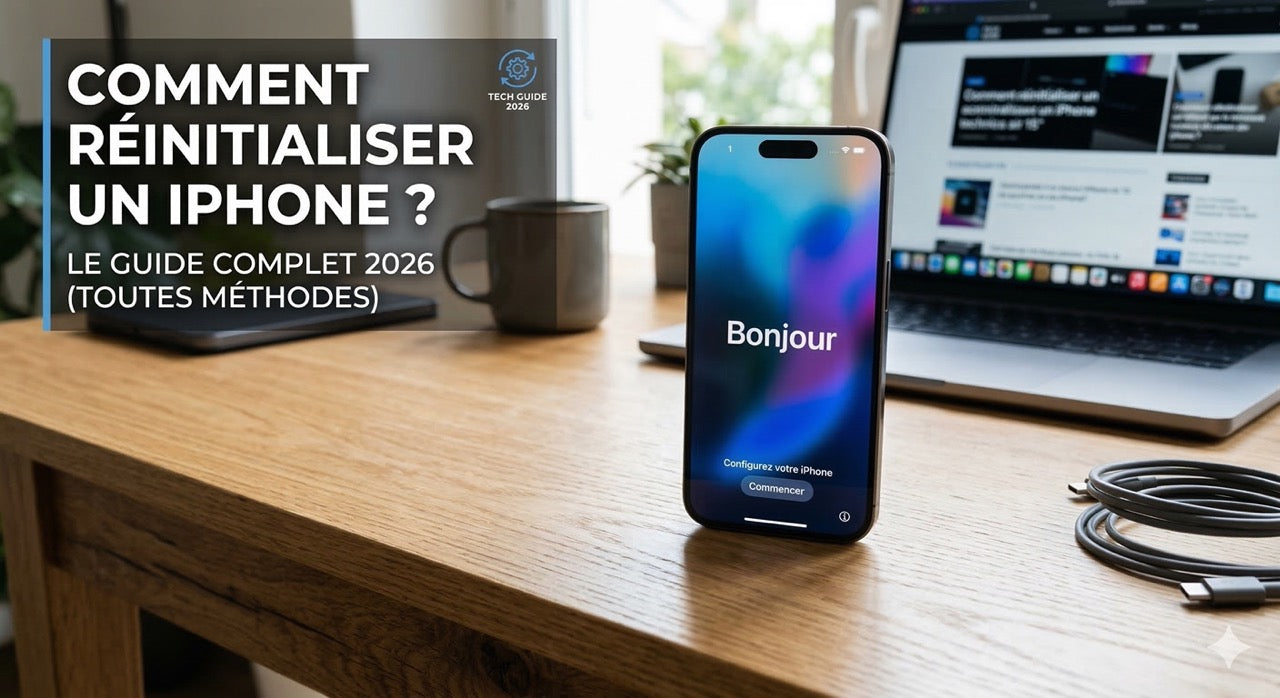
Quick Answer: To reset an iPhone, go to Settings → General → Transfer or Reset iPhone → Erase Content and Settings. First, back up your data to iCloud or via Finder/iTunes. The operation is irreversible and takes 2 to 10 minutes depending on the amount of data.
Do you want to sell your iPhone, fix a persistent bug, start fresh, or simply erase all your data before upgrading to a new model? Resetting is an essential operation—but it shouldn't be done lightly.
This guide covers all possible methods depending on your situation: partial settings reset, complete erase, without a computer, via Mac or PC, without a passcode, or remotely via iCloud. Choose the one that fits your case.
Table of Contents
- Before you begin: back up your data
- The 6 types of iPhone resets
- Method 1 – Complete reset from Settings
- Method 2 – Partial reset (without losing data)
- Method 3 – Via Mac (Finder) or PC (iTunes / Apple Devices)
- Method 4 – Remotely from iCloud.com
- Method 5 – Without a passcode (recovery mode)
- Resetting your iPhone before selling: steps in order
- What happens after the reset?
- FAQ
1. Before you begin: back up your data
⚠️ A complete reset is irreversible. Once initiated, all your photos, contacts, messages, apps, and settings are permanently erased. Always start by backing up your data.
Option A — iCloud Backup (recommended, no cable needed)
- Connect your iPhone to a Wi-Fi network
- Go to Settings → [your name] → iCloud → iCloud Backup
- Tap "Back Up Now"
- Wait for it to finish — check the date of the last backup before proceeding
💡 Make sure you have enough iCloud storage (5 GB free by default). If not, opt for backup via computer.
Option B — Backup via Mac (Finder) or PC (iTunes / Apple Devices)
- Connect the iPhone to your computer with a cable
- On Mac (macOS Catalina or later): open Finder, select your iPhone in the sidebar
- On Windows PC: open iTunes or the Apple Devices app
- Click "Back Up Now"
- Wait for it to fully complete before disconnecting
2. The 6 types of iPhone resets: which one to choose?
| Type of Reset | What is erased | What is kept | When to use it |
|---|---|---|---|
| Reset All Settings | Wi-Fi, Bluetooth, notifications, brightness, Apple Pay, privacy | Photos, contacts, messages, apps, data | Minor software bug, network or battery issue |
| Reset Network Settings | Saved Wi-Fi, VPN, APN, paired Bluetooth | Everything else | Wi-Fi or 4G/5G connection issue |
| Reset Keyboard Dictionary | Words added to the keyboard | Everything else | Keyboard suggesting incorrect words |
| Reset Location & Privacy | App access permissions (GPS, mic, camera…) | Everything else | To reset app permissions |
| Erase Content and Settings | Everything — data, apps, settings, account | Nothing (eSIM option) | Selling, donating, major bug, starting fresh |
| Recovery Mode (DFU) | Everything, including iOS (complete reinstallation) | Nothing | iPhone frozen, forgotten passcode, corrupted iOS |
3. Method 1 — Complete reset from Settings
For whom: you can access your iPhone normally, you know your passcode and Apple ID.
- Open Settings
- Tap General
- Scroll down to the bottom → tap "Transfer or Reset iPhone"
- Tap "Erase Content and Settings"
- If you have an eSIM: choose to keep it (if you're keeping the iPhone) or erase it (if you're selling the device)
- Enter your iPhone passcode if prompted
- Enter your Apple ID and password to disable "Find My"
- Confirm by tapping "Erase iPhone"
- The iPhone restarts, the erase takes 2 to 10 minutes
- The "Hello" screen appears: the reset is complete ✅
⚠️ Never unplug the iPhone during the process. Plug it into power if the battery is below 50%.
4. Method 2 — Partial reset (without losing data)
For whom: you are experiencing a bug, a Wi-Fi, battery, or slowness issue, but you don't want to erase your photos and data.
- Open Settings → General
- Tap "Transfer or Reset iPhone"
- Tap "Reset" (not "Erase")
- Choose the option suitable for your problem:
- 🔵 Reset All Settings → resolves most software bugs without erasing your data
- 📶 Reset Network Settings → fixes Wi-Fi, 4G/5G, or Bluetooth issues
- ⌨️ Reset Keyboard Dictionary → erases only added words
- 📍 Reset Location & Privacy → resets app permissions
✅ None of these options erase your photos, contacts, messages, or applications. This is the first thing to try before a complete reset.
5. Method 3 — Via Mac (Finder) or PC (iTunes / Apple Devices)
For whom: the screen is unresponsive, the iPhone is stuck on the Apple logo, or you prefer to use a computer.
- Connect the iPhone to your computer with a USB cable
- On Mac (macOS Catalina or later): open Finder
- On Windows PC: open iTunes or the Apple Devices app (Microsoft Store)
- Select your iPhone when it appears in the sidebar
- Click "Restore iPhone"
- Confirm — the computer downloads iOS and reinstalls the system
- The operation takes 10 to 30 minutes depending on your connection
⚠️ If "Find My iPhone" is enabled, you will need to enter your Apple ID and password after the restore. Without these credentials, the iPhone will remain locked — this is Apple's anti-theft Activation Lock.
6. Method 4 — Remotely from iCloud.com
For whom: you have lost your iPhone, it has been stolen, or you want to erase it remotely without physical access.
Requirements:
- The "Find My" feature must be enabled on the iPhone
- The iPhone must be connected to the internet (Wi-Fi or mobile data)
- You must know your Apple ID and password
- Go to icloud.com from a browser
- Sign in with your Apple ID
- Click on "Find Devices" then "All Devices"
- Select your iPhone from the list
- Click on "Erase iPhone"
- Confirm — the iPhone will be erased as soon as it connects to the internet
💡 If the iPhone is offline, the erase will automatically trigger upon the next network connection.
7. Method 5 — Without a passcode (recovery mode)
For whom: you have forgotten your passcode, the iPhone is disabled ("iPhone Disabled, Connect to iTunes"), or iOS is corrupted.
⚠️ This method erases all content on the iPhone with no possibility of recovery if you do not have a backup.
Step 1 — Put the iPhone in recovery mode
The procedure varies by model:
-
iPhone 8, X, XS, XR, 11, 12, 13, 14, 15, 16:
Quickly press and release the Volume Up button, then Volume Down, then hold the Side button until the cable + computer screen appears -
iPhone 7 / 7 Plus:
Simultaneously hold the Volume Down button and the Side button until the cable + computer screen appears -
iPhone 6s and earlier:
Simultaneously hold the Home button and the Top / Side button until the cable + computer screen appears
Step 2 — Restore from computer
- Connect the iPhone to your Mac (Finder) or PC (iTunes / Apple Devices) before entering recovery mode
- A window appears: choose "Restore" (not "Update")
- The computer downloads iOS and reinstalls the system — allow 15 to 30 minutes
- If the download takes longer than 15 minutes and the iPhone exits recovery mode, repeat Step 1
- The "Hello" screen appears: the restore is complete
8. Resetting your iPhone before selling: steps in order
If you are selling or giving away your iPhone, don't just erase the data — follow these steps in order to prevent the new owner from being blocked by the Activation Lock.
- ✅ Back up your data (iCloud or Finder/iTunes)
- ✅ Disable "Find My iPhone": Settings → [your name] → Find My → Find My iPhone → Turn Off
- ✅ Sign out of iCloud: Settings → [your name] → Sign Out (at the bottom) → choose to keep or delete iCloud data on the iPhone
- ✅ Manage the eSIM if you have one: decide whether to keep or erase it
- ✅ Reset the iPhone: Settings → General → Transfer or Reset → Erase Content and Settings
- ✅ Verify after reset: the "Hello" screen should appear without asking for a passcode or Apple ID — a sign that the Activation Lock is successfully disabled
💡 Lifone Tip: If you're buying a refurbished or used iPhone, always check that the "Hello" screen appears on first startup without asking for an Apple ID. An iPhone still linked to the previous owner's account is unusable. At Lifone, all our iPhones are delivered wiped and unlocked, with no link to a previous account.
9. What happens after the reset?
After a complete reset, your iPhone displays the "Hello" screen — just like when you first bought it. You then have two options:
Option A — Set up as a new iPhone
Choose this option if you want to start from scratch, or if you are selling the device. The new owner will set up their own account.
Option B — Restore from a backup
- From iCloud: during initial setup, choose "Restore from iCloud Backup" and sign in to your account. Your data, apps, and settings will automatically reinstall.
- From Mac/PC: connect the iPhone to your computer, open Finder or iTunes, select "Restore from this backup" and choose the most recent backup.
⏱️ Restoring from iCloud can take 20 minutes to several hours depending on the size of your backup and your Wi-Fi speed. From a computer, it is generally faster.
❓ FAQ – Resetting an iPhone: all your questions
How to reset an iPhone without losing photos?
Use a partial reset: Settings → General → Transfer or Reset iPhone → Reset → Reset All Settings. This option resets your settings (Wi-Fi, notifications, Apple Pay, privacy) without affecting your photos, contacts, messages, or apps. This is the preferred method for resolving a bug without losing data.
How to reset an iPhone without a passcode?
If you've forgotten your passcode, use recovery mode. Connect the iPhone to a Mac (Finder) or PC (iTunes / Apple Devices), put the iPhone into recovery mode by holding the correct buttons for your model, then choose "Restore". This operation erases all content. On iOS 15.2 or later, you can also reset directly from the Lock Screen if the iPhone is connected to Wi-Fi and you know your Apple ID.
Does resetting remove iOS?
Resetting via Settings (Erase Content and Settings) removes all your personal data but keeps the installed iOS version. However, a restore via Finder, iTunes, or recovery mode downloads and reinstalls a clean version of iOS from Apple servers.
How long does an iPhone reset take?
A complete reset from Settings usually takes 2 to 10 minutes depending on the amount of data stored. A restore via computer can take 15 to 30 minutes (the time it takes to download iOS from Apple servers). Restoring data from an iCloud backup can then take 20 minutes to several hours depending on the size of the backup.
Should "Find My iPhone" be disabled before selling an iPhone?
Yes, it's essential. If "Find My iPhone" remains activated during the reset, the iPhone will be blocked by Apple's Activation Lock. The new owner will face a request for the previous owner's Apple ID, and the device will be unusable. Always disable "Find My" and sign out of your iCloud account before resetting an iPhone intended for sale.
Can data be recovered after a reset?
No, a complete reset (Erase Content and Settings) is irreversible. It is impossible to recover data afterwards without having made a prior backup. The only exception: if you have an iCloud or computer backup made before the reset, you can restore everything during the iPhone's reconfiguration.
How to reset network settings on iPhone?
Go to Settings → General → Transfer or Reset iPhone → Reset → Reset Network Settings. This operation erases all saved Wi-Fi networks, VPN settings, and Bluetooth configurations, without affecting your personal data. This is the first thing to do in case of persistent Wi-Fi or 4G/5G connection issues.
What to do if iPhone reset is stuck?
If your iPhone is stuck during the reset, do not force it off. Wait at least 15 minutes. If nothing happens, connect it to a computer and use recovery mode: put the iPhone into recovery mode via the physical buttons, then choose "Restore" in Finder or iTunes. This method reinstalls iOS cleanly even when the device is completely frozen.
🛡️ Need a ready-to-use refurbished iPhone?
Have you just reset your old iPhone and are looking for a new model? Or do you want to buy a used iPhone and be sure it's properly erased?
At Lifone, all our refurbished iPhones are delivered completely wiped, with no link to a previous account, and ready to be set up as new. 100% original Apple parts, guaranteed for 24 months, tested on 40+ checkpoints, delivered quickly in France and Europe.
Lifone – Apple excellence, without compromise.
Is the iPhone 15 Pro worth it in 2026? Our opinion
Obsolete iPhones in 2026: official complete updated list (March 2026)