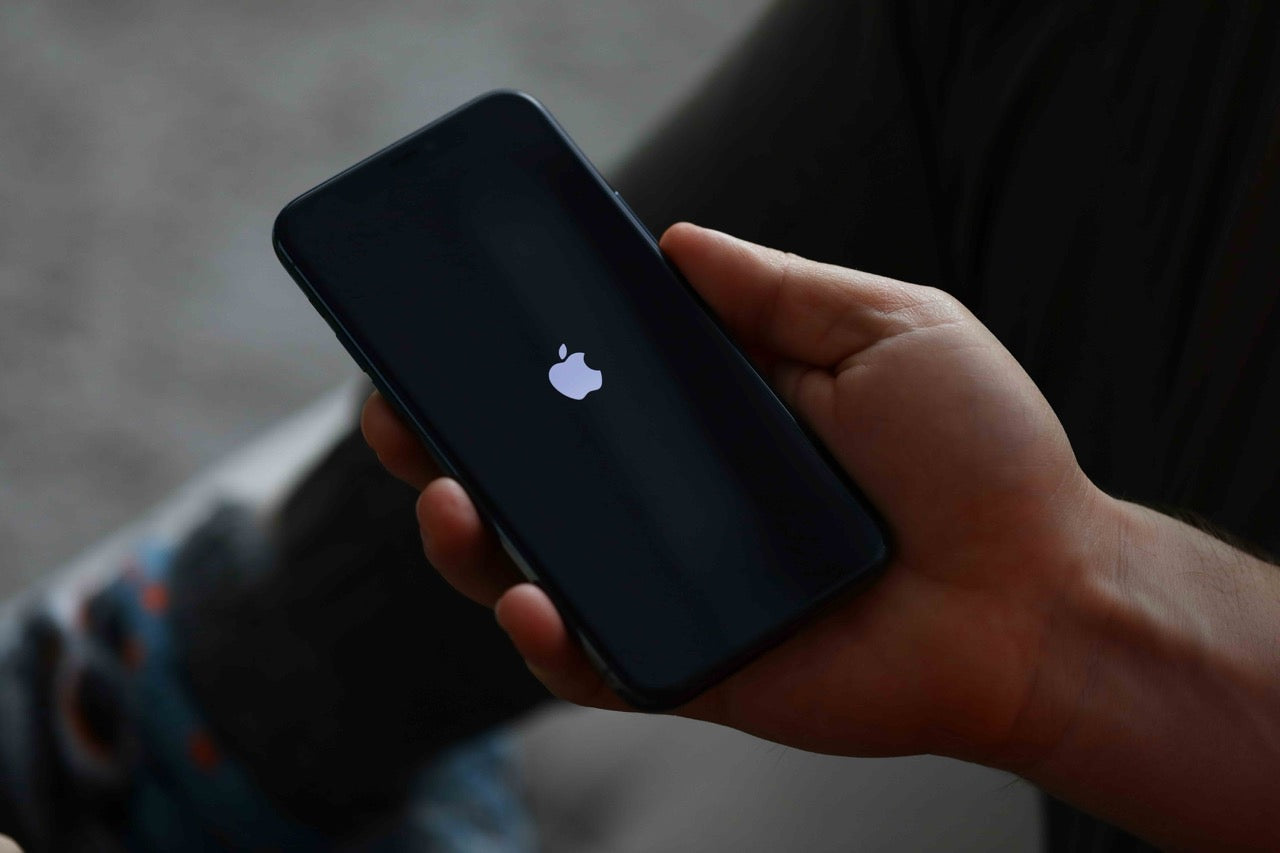
Is your iPhone's touchscreen unresponsive, and you're looking for a way to turn it off ? Don't panic—there are several safe methods to turn off or restart an iPhone even when the screen isn't working. In this practical guide, I'll explain, step by step, the solutions for each model, the precautions to take, and the alternatives if nothing else works. Follow the method that's right for your iPhone and back up your data before attempting any risky procedures.
— Important reminder: Before attempting any advanced operations, remember to back up your data if possible (iCloud or via a computer). If your iPhone is under warranty or if you have any doubts, contact a professional.
1) Simplest method: force a restart (turn off → turn back on)
Forcing a restart does not always shut down the device permanently, but it allows you to shut down and then restart the system — which often resolves a frozen screen.
-
iPhone 8, X, 11, 12, 13, 14, 15 and later models
-
Press Volume + quickly, then release.
-
Press Volume − quickly, then release.
-
Press and hold the side (Power) button until you see the Apple logo.
-
-
iPhone 7 / 7 Plus
Press and hold Volume − and the side button simultaneously until the Apple logo appears. -
iPhone 6s and earlier (with Home button)
Press and hold the Home button and the top (or side) button simultaneously until the Apple logo appears.
This forced restart shuts down and then restarts the system without needing to use the touchscreen.
2) If you want to turn off completely (slider) without touchscreens
On modern iPhones, displaying the "Slide to power off" slider normally requires using the screen. However, there's a workaround: if your goal is to stop all activity, a force restart (see §1) is usually sufficient. If you need a complete shutdown (e.g., before a repair), you can:
-
Using a computer (Mac/PC) : Connect your iPhone to a computer and launch iTunes (Windows) or Finder (macOS). You can perform a restore or put the device into DFU/Recovery mode—these operations result in a hard reset or restart (note: restoring may erase data if you choose this option).
-
Let the battery discharge (last resort): the device will shut down naturally when the battery is empty. It's slow but reliable.
3) Alternative solutions if the screen responds intermittently
-
AssistiveTouch (requires a working screen): When the screen is intermittently unresponsive, enable AssistiveTouch via Settings > Accessibility > Touch > AssistiveTouch — it provides a virtual button to access the Turn Off option.
-
Contact a technician : if the screen is physically broken, it is best to consult a qualified repairer before attempting any risky repairs.
4) Precautions and best practices
-
Do not press the buttons for too long (do not hold them down for too long if the device enters SOS mode).
-
Back up your data regularly (iCloud or local backup) to avoid any loss in case of restoration.
-
If you are unsure, take the device to a professional for diagnosis and repair.
5) In summary — what to do now?
-
To unlock an iPhone whose screen is no longer responding: first try a forced restart (methods listed above).
-
If you need a complete shutdown and cannot use the screen: connect it to a computer for advanced actions (Recovery/DFU mode) or have the device checked by a pro.
-
And if your question was simply "how to turn off an iPhone without touchscreen" , the most reliable and quickest answer is: force restart according to your model .
FAQ — How to turn off an iPhone without a touchscreen
How do I turn off an iPhone without a touchscreen?
To turn off an iPhone without touchscreen functionality, perform a forced restart . On iPhone 8 or later: quickly press Volume + , then Volume - , then hold the side button until the screen goes black and the Apple logo appears.
How to force a frozen iPhone to shut down?
If your iPhone is frozen, press and hold the side button and one of the volume buttons until the screen goes black. This will restart the device without erasing your data.
How do I turn off an iPhone using only the buttons?
Press and hold the side button and one of the volume buttons simultaneously until the "Power off" slider appears. If the screen does not respond, allow the battery to drain completely for a full shutdown.
How do I turn off an iPhone when the screen is completely unresponsive?
If the touchscreen is completely unresponsive, connect your iPhone to a computer using iTunes or Finder . You can then restart it, shut it down, or safely restore it in Recovery mode.
Is it dangerous to force restart your iPhone?
No, it's not risky. Force restart is a feature provided by Apple to resolve system freezes. It doesn't erase your data or damage the device.


iPhone installment payment: buy your refurbished iPhone with no fees at Lifone
iPhone 13 mini: features, full review and 2025 opinion